Changelog

New features and improvements in Traqer, newest first.

  1. New Plan & Billing Page

    Settings → Plan & Billing now shows everything you pay for on one page. At the top: your plan, your prompt usage and your next invoice, with a breakdown. Below: one table with every brand, its update speed (Weekly, Every 3 days or Daily), its Claude and Perplexity switches, and what it adds to your bill each month. You can search the table or filter it to brands with add-ons.

    To change one brand from the Brands page, open its ⋮ menu and choose Updates and add-ons.
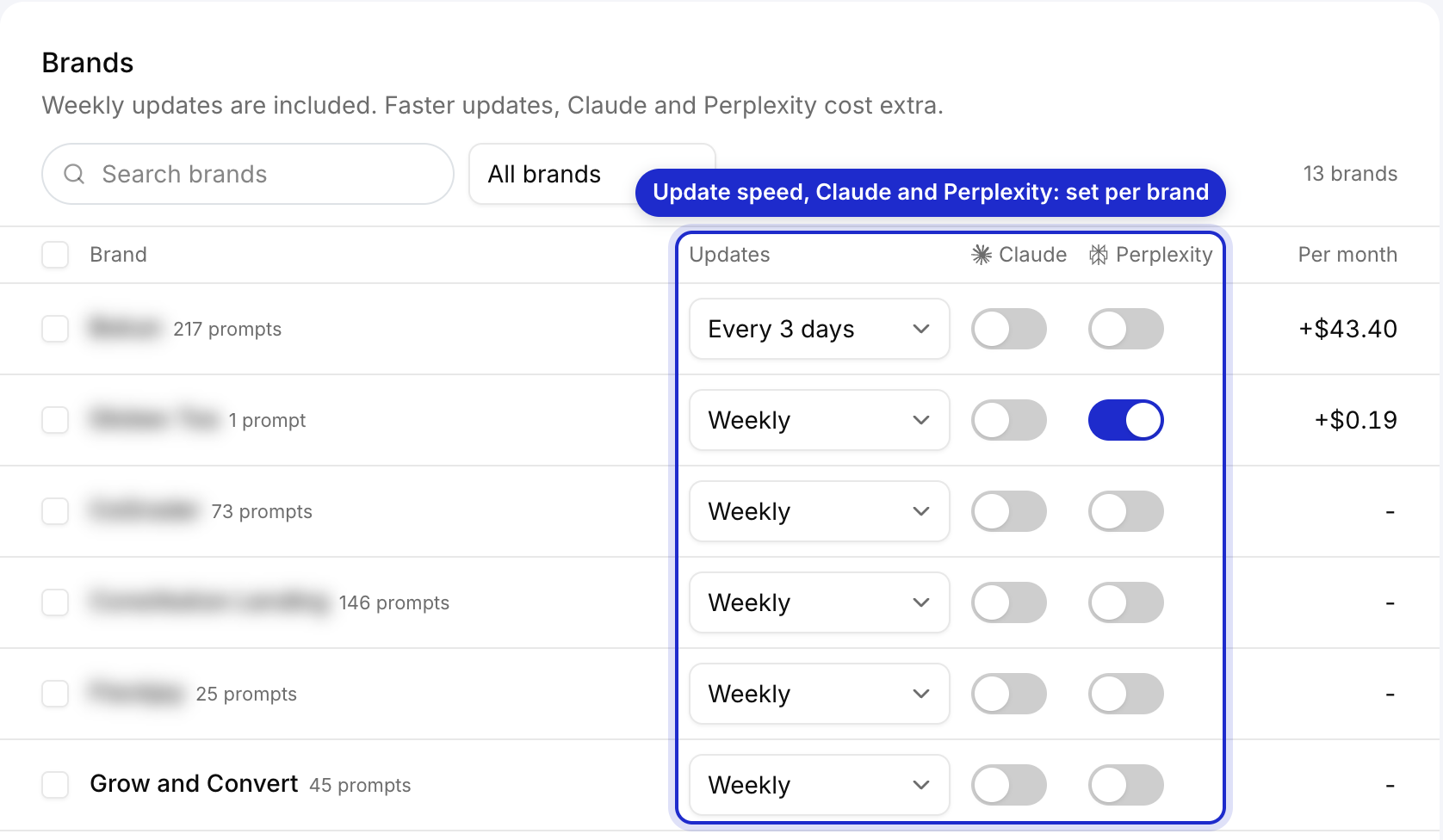
    Brands table in Plan and Billing

    Settings → Plan & Billing

    Read more: Billing & Plans

  2. Invoices in Traqer

    Your latest invoices are listed at the bottom of Settings → Plan & Billing, with the date, number, status and amount. View opens or downloads an invoice, and View all shows your full billing history.
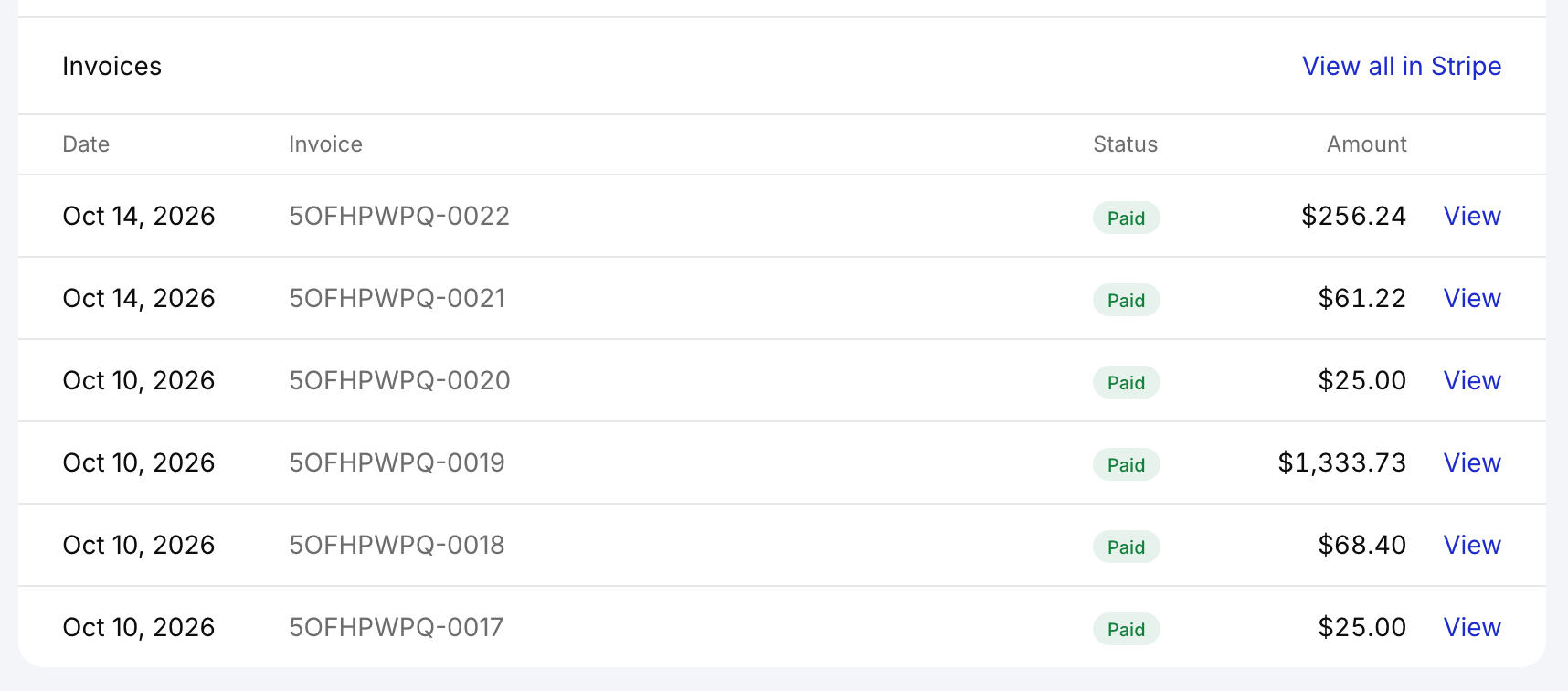
    Invoices list in Plan and Billing

    Read more: Billing & Plans

  3. Weekly Reports, Per Person

    Each person now picks the brands they get a weekly report for, in Settings → Notifications. Your picks don't change anyone else's emails, so an account owner can follow three clients while a strategist follows the other ten.

    One per brand sends a separate report for each brand, which you can forward to that client. Combined digest sends one email on Mondays. New team members start with no reports until they pick, the account owner gets reports for new brands as before, and paused brands don't send.
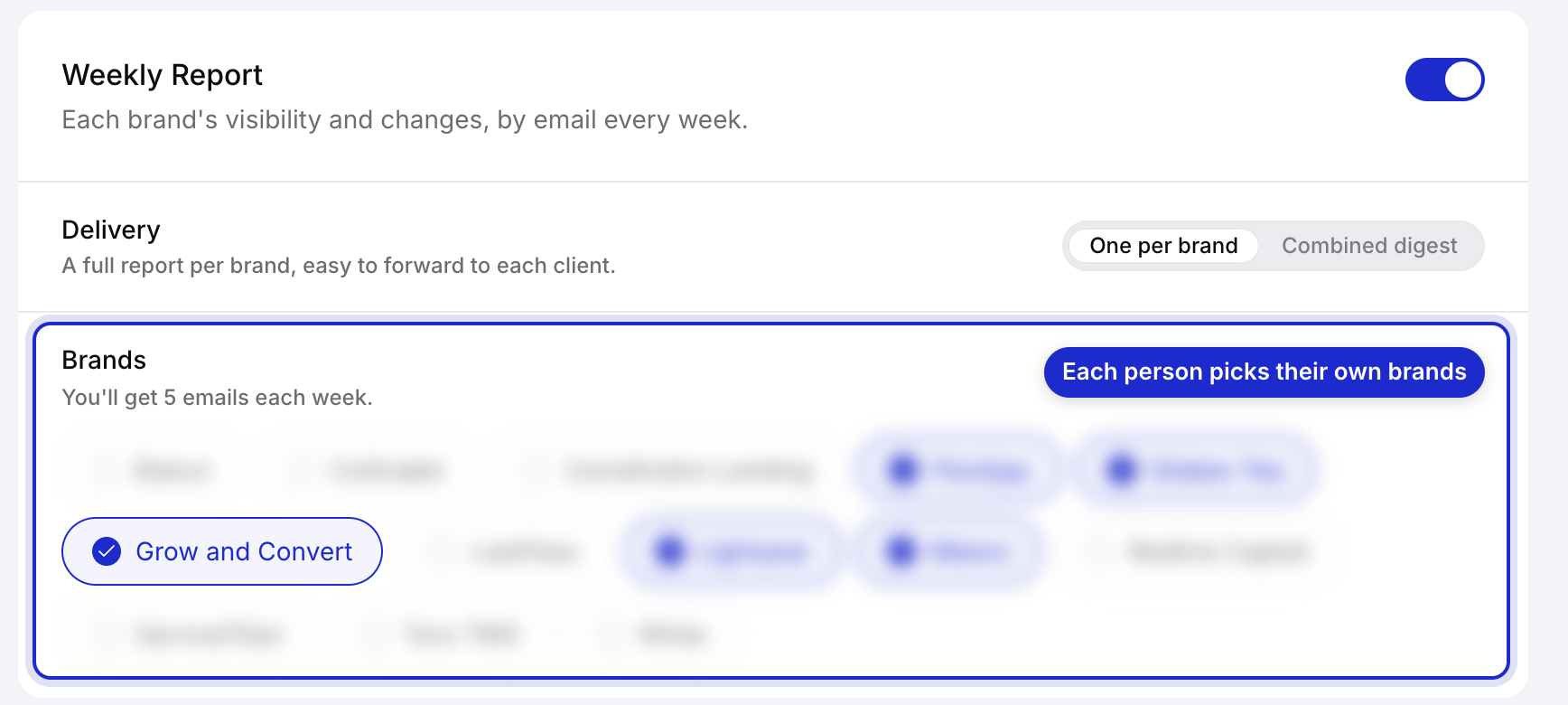
    Weekly Report settings with brand picks

    Settings → Notifications

    Read more: AI visibility report: what to include for your clients

  4. Faster Brand Pages

    We rebuilt how brand pages load. On one of our largest brands, All runs went from about 20 seconds to about 2, and every brand page now makes fewer requests. The numbers themselves are the same.

  5. Monthly Average on Topic Graphs

    You can now switch a topic graph from Every run to Monthly. Each point becomes the average of that month's runs, which is easier to read on brands that update every few days. You can also choose which LLMs the graph counts, and the choice is saved for that brand.

    Read more: Date Ranges and Comparisons · How to track ChatGPT rankings over time

  6. Copilot on Every Plan

    Every plan now tracks Microsoft Copilot at no extra cost, next to ChatGPT, Google AI Overviews, Gemini and AI Mode. We added it because Copilot is built into Windows, Edge and Microsoft 365. Copilot gets its own column in the topic table and its own line on the graphs. A brand shows Copilot results from its next run.

    Perplexity is now an add-on you switch on per brand in Settings → Plan & Billing: $0.29 per prompt a month on Basic, $0.23 on Plus and $0.19 on Pro. Past Perplexity results stay in your history but no longer count toward Combined.
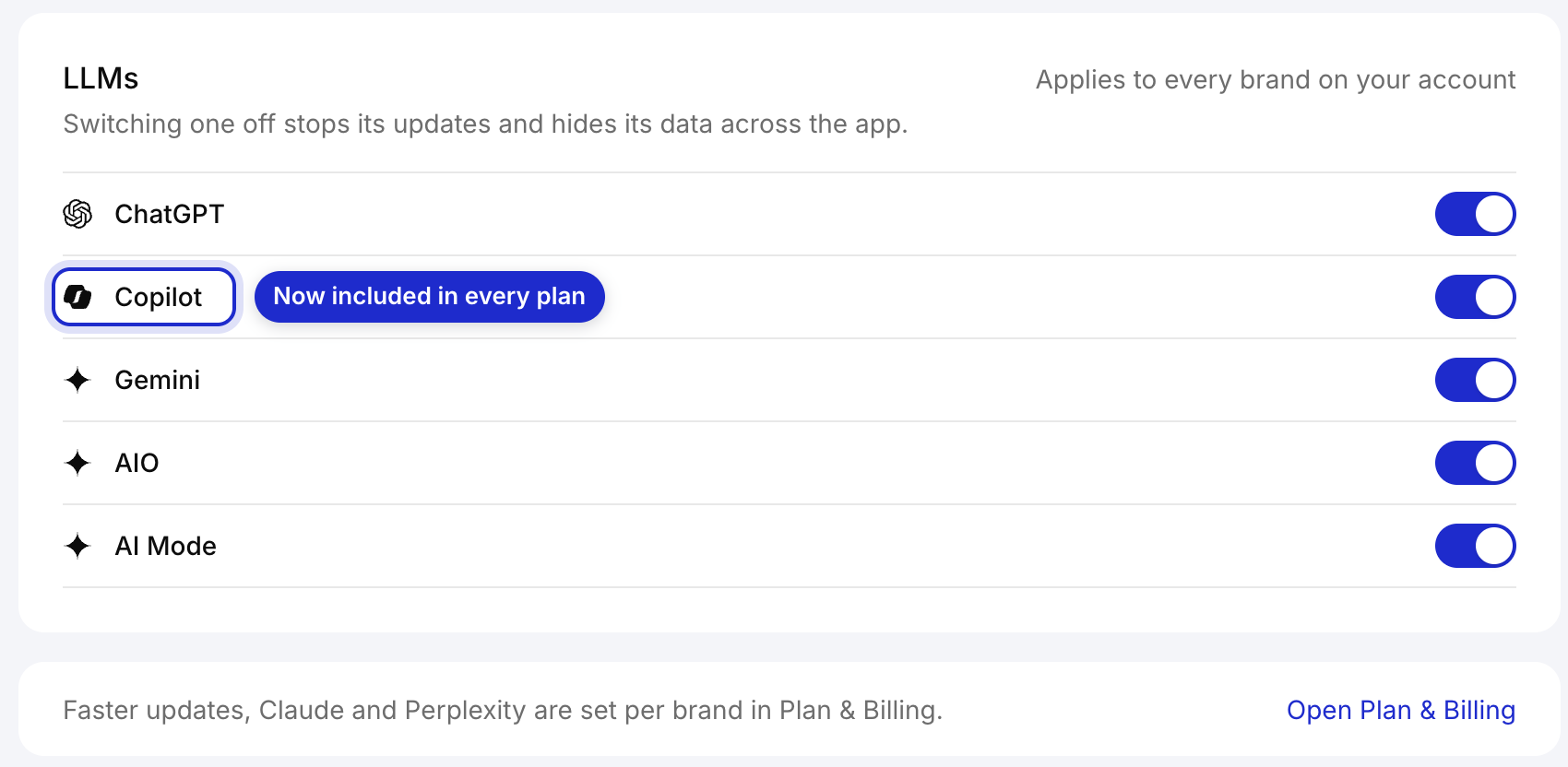
    Copilot in the LLM list in Settings, Tracking

    Settings → Tracking

    Read more: Billing & Plans · How to track brand mentions in Perplexity

  7. New Help Docs

    The Help Docs have a search box (press / to open it), a contents list on every article, and section links that open at that section, so you can send a client the exact paragraph.
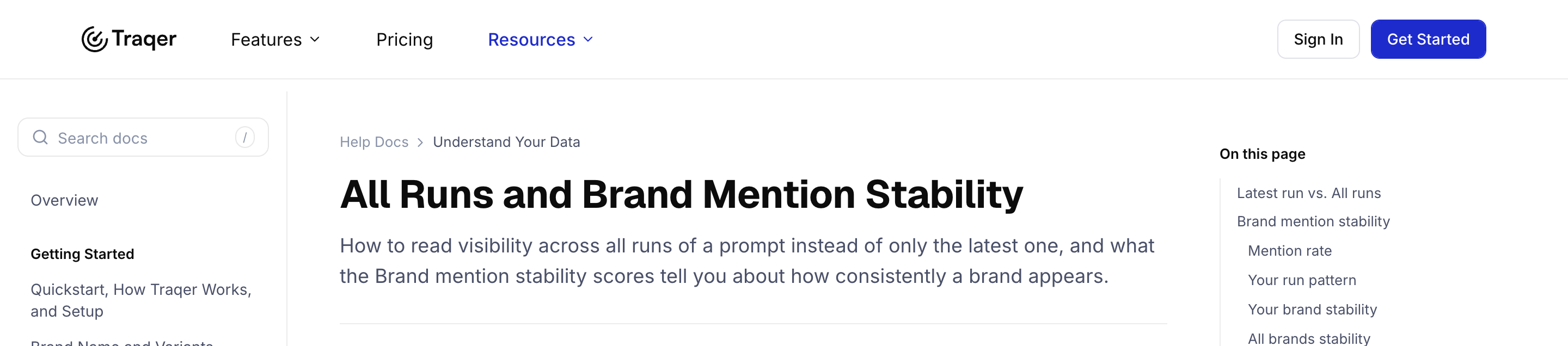
    Help Docs article with search and contents

  8. Connect Traqer to ChatGPT

    You can now connect Traqer to ChatGPT and ask about your brands in plain language. Try asking:

    • "How has our AI visibility changed in the last 30 days?"

    • "Which competitors are gaining on us?"

    • "Which sites get cited when we're mentioned?"

    ChatGPT can read your Traqer data but can't change anything, and it only sees the brands you can see. Traqer never sees your chats. It's available on paid plans.

    Read more: Connect Traqer to ChatGPT · AI visibility tools with an MCP server: what to look for

  9. Brand Spellings Combined

    LLMs don't always spell a brand the way its website does. In our own data, answers named us "Grow and Convert", "Grow & Convert" and "Grow& Convert". Counted separately, each one looked like a smaller brand, and we looked less visible than we were.

    Brands Mentioned now counts names that differ only in capitals, spaces, punctuation or "&" versus "and" as one brand. The +2 next to a name shows the spellings it combined.

    For look-alikes such as "Otterly" and "Otterly AI", the smaller row gets a ⋮ menu with Count as. Pick the match and the two merge everywhere, including share links, exports and competitor numbers. Separate undoes it. We don't merge look-alikes automatically, because "SEO.co" and "SEO Inc" can be two different companies. Contributors and above can use Count as.
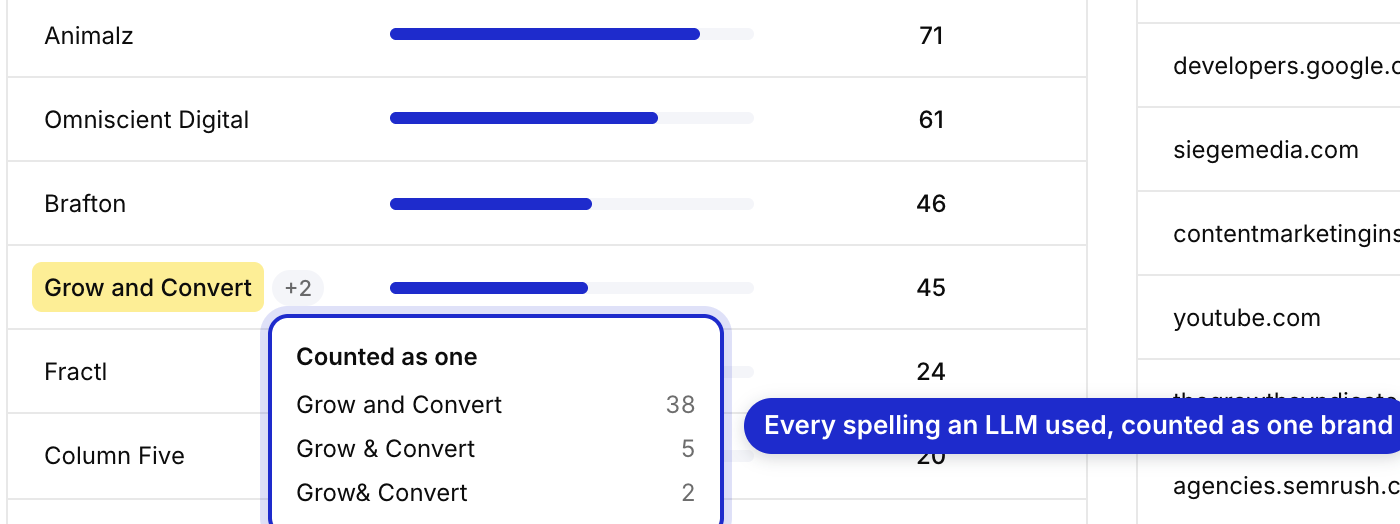
    Three spellings counted as one brand

    Brand Analysis → Brands Mentioned

    Read more: Brand Name and Variants · How to track brand mentions in AI search

  10. All Runs Is the Default

    Brands with 3 or more runs now open on All runs. It's the view we use for analysis and client reports, because it counts every run instead of the latest one. The run controls changed with it: All runs comes first, the dropdown lists runs by date, and in the prompt view you can open the response from any single run.

    Read more: All Runs and Brand Mention Stability

  11. White Label

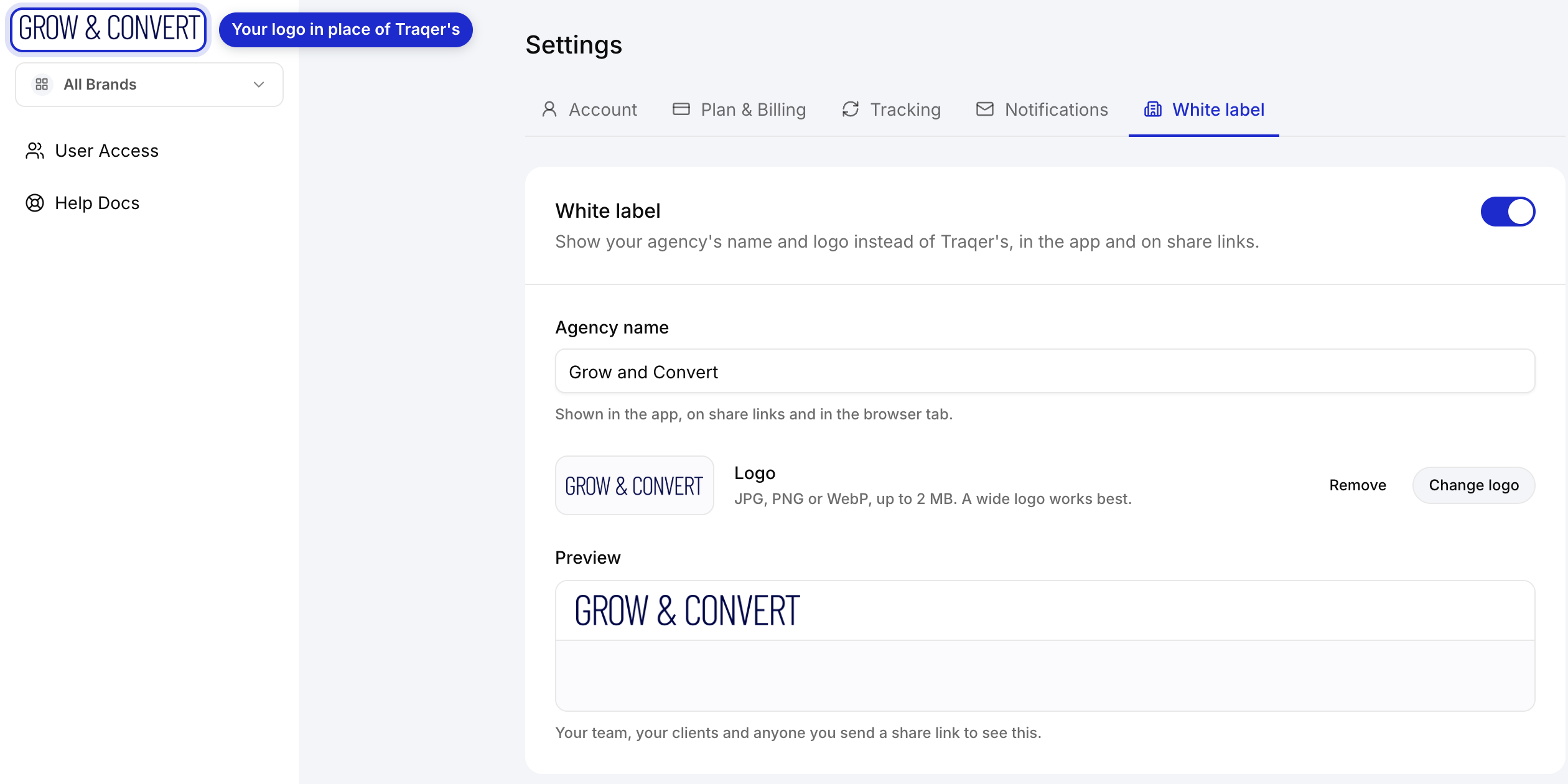
    You can now put your agency's name and logo on Traqer. Add them in Settings → White label and Traqer shows them instead of its own: in the app, on share links and in the browser tab. Your team, your clients and anyone you send a share link to see your brand. White label is on the Plus, Pro and Enterprise plans.
    White label settings with an agency logo

    Settings → White label

    Read more: AI visibility tracking tools for agencies: what we found

  12. Sentiment Analysis

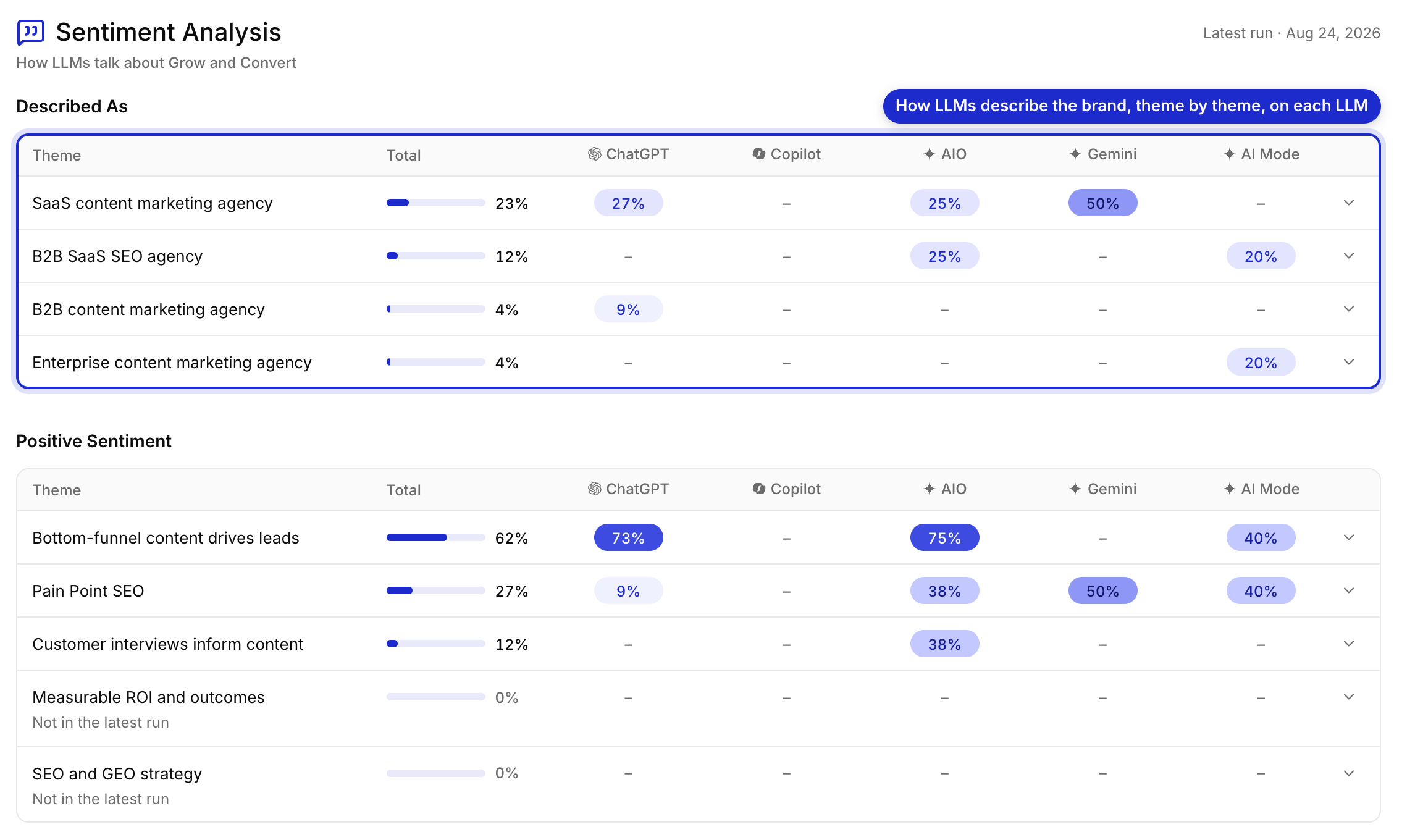
    Sentiment Analysis reads every answer that mentions a brand and groups what the LLMs say into themes:

    • Described As: how the LLMs categorize the brand. 23% of the mentions of Grow and Convert call us a "SaaS content marketing agency".

    • Positive Sentiment and Negative Sentiment: the strengths and complaints that come up, with their share of mentions on each LLM.

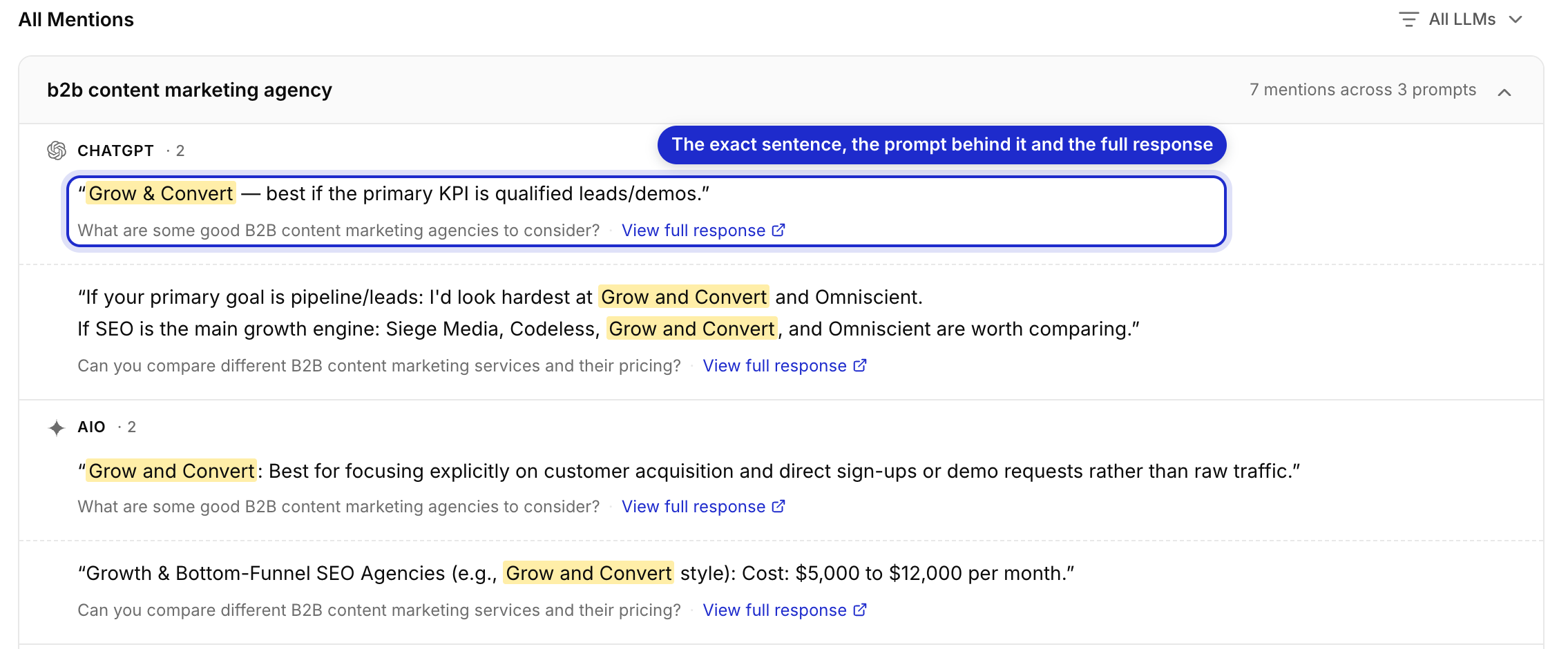
    • All Mentions: every sentence where an LLM named the brand, by topic and LLM, with the prompt and a link to the full response.

    It's in the brand Analysis panel, and exports have a How LLMs Talk About You tab with every quote. We think the quotes are the most useful part for client reports: they show what ChatGPT actually says about a client, word for word. Sentiment Analysis replaces Brand Sentiment.
    Sentiment Analysis themes

    Brand Analysis → Sentiment Analysis

    All Mentions quotes grouped by topic and LLM

    Sentiment Analysis → All Mentions

    Read more: Prompt Response Details · AI brand monitoring: how to monitor your brand in LLMs · AI visibility report: what to include for your clients

  13. Graph Fixes

    Several changes to the brand and topic graphs:

    • Each LLM's line starts on the day Traqer started tracking it. Gemini and AI Mode used to show months of 0% from before we added them, which pulled the Combined line down.

    • Combined is the average of the LLMs that ran on each date. The hover box says how many ("Average of 5 LLMs").

    • A + on the date line marks the day an LLM was added, next to the G markers for Google updates.

    • Runs sit on their real dates, so a month without runs takes up a month on the graph.

    • A date with too little data no longer breaks the line.

    • The LLM Visibility % axis fits the data, so a brand between 10% and 30% isn't squeezed into the bottom of a 0 to 100 scale.

    Brand graph with a Google update marker

    Show graph on any brand. Hover a marker for details.

    Read more: Date Ranges and Comparisons · Visibility Models

  14. Claude, Per Brand

    Claude is now switched on per brand and priced per prompt, instead of one add-on for the whole account. With weekly updates it's $0.50 per prompt a month on Basic, $0.47 on Plus and $0.44 on Pro. Claude follows the brand's update speed, so a daily brand checks Claude daily. Switch it on in Settings → Plan & Billing.

    Read more: Billing & Plans · How to optimize for Claude visibility · Claude rank tracker tool: how to choose and what to know

  15. User Access Redesign

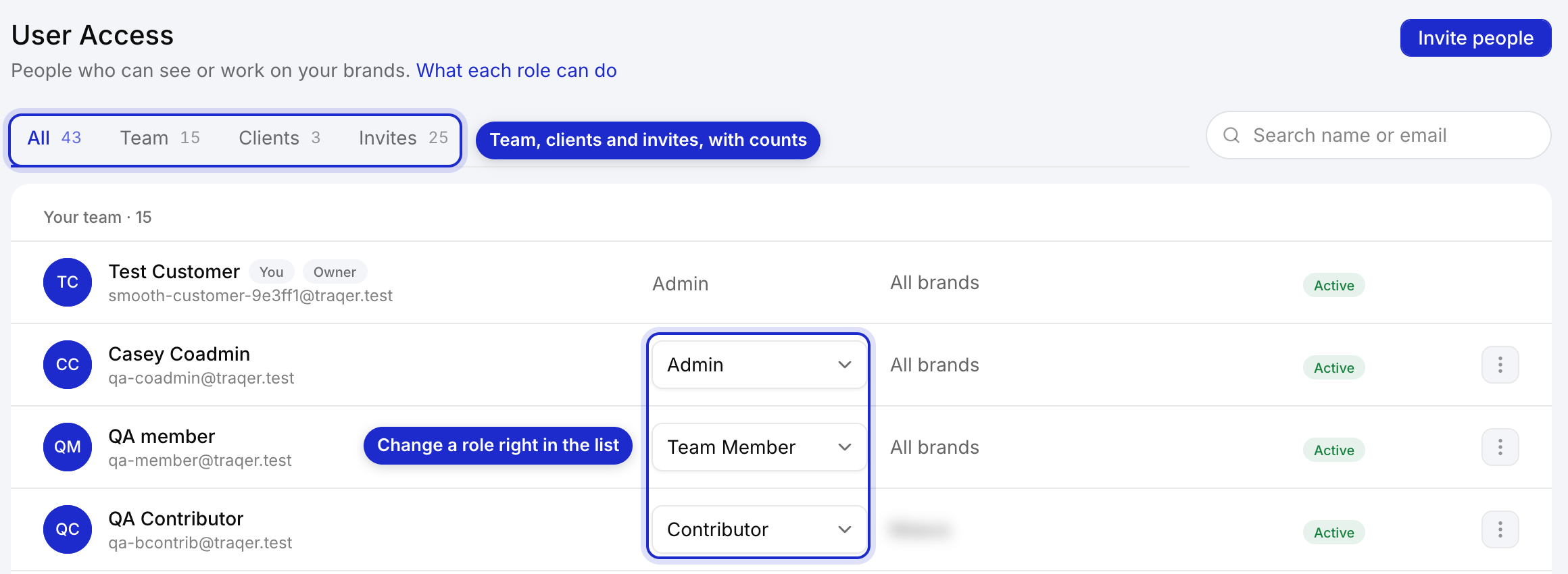
    User Access now has three tabs: Team, Clients (people who only see the brands you share with them) and Invites, each with a count, plus a search box. You can change a role from the list, see each invite's status (Active, Invite sent or Expired), and resend or clear expired invites. What each role can do compares the four roles.
    User Access with Team, Clients and Invites tabs

    User Access, in the sidebar

    Read more: Managing Users

  16. Profile Photos

    Upload a photo in Settings → Account (JPG, PNG or WebP, up to 2 MB). It replaces your initials in the sidebar and in User Access. If you sign in with Google, your Google photo is used until you upload one.

  17. Better Prompt Suggestions

    The prompts Traqer suggests for a new brand or topic now ask the kind of question where LLMs list brands. Before, many were how-to questions like "How do same day business loans work?", which LLMs answer without naming anyone. The same topic now gets "Which lenders can fund a business loan the same day?". Prompts you already have don't change.

    Read more: Prompts · Invisible prompts: why you can't see the AI searches driving your leads

  18. Update Speed Per Brand

    Each brand can now update Weekly (included), Every 3 days or Daily. Faster updates cost the same on every plan: +$0.20 per prompt a month for every 3 days and +$1.25 for daily. Set it in Settings → Plan & Billing or from the brand's ⋮ menu, and Traqer shows the monthly cost before anything changes.

    We'd keep most brands on weekly. LLM answers don't change much week to week, and All runs evens out the noise. Speed up a brand around a launch, for example, when a few days matter.

    Read more: Billing & Plans

  19. Settings Tabs and Change Password

    Settings now has tabs, each with its own link: Account, Plan & Billing, Tracking, Notifications and, on plans that include it, White label. Change password is under Account. It keeps you signed in on the device you're using and signs out the others. If you joined by invite or sign in with Google, you can create a password there.

  20. Topic Graphs Open on All Time

    Show Graph on a topic now opens on the topic's full history. The date button offers Last 3 months, Last 6 months, Last 12 months, All time and Custom, and in Custom you can change the start or end date on its own.

    Read more: Date Ranges and Comparisons

  21. Trial Ending Notice

    The trial banner now appears 5 days before the trial ends, up from 3. View details lists what's kept (brands, topics and results), what stops (updates) and what's locked until you pick a plan. You can hide the banner for the rest of the day.

  22. LLM Outages No Longer Look Like Drops

    When an LLM fails to answer, Traqer now retries. If it still fails, the graph uses that prompt's last real result from the past 14 days. Before, a failed check counted as "not mentioned", so an outage on the LLM's side showed up as a drop in visibility.

    Read more: All Runs and Brand Mention Stability

  23. Annual Plans

    Paid yearly, every plan is 15% cheaper: Basic is $21 a month ($252 a year), Plus is $85 ($1,020) and Pro is $340 ($4,080). Claude and faster updates get the same 15% off. Switch between Monthly and Annual on the pricing page or in Settings → Plan & Billing. Before any change, Traqer shows what's due today and when the plan renews.

    Read more: Billing & Plans · Affordable AI search visibility: which solution wins on cost?

  24. Role Permissions

    Each role now has clear limits on every brand:

    • Viewer: sees only the brands you give them. Can view, export and share, and open Analyze & Improve.

    • Contributor: can also edit topics, prompts, competitors and brand settings.

    • Team Member: sees every brand on the account and can add, pause and delete brands. No billing.

    • Admin: everything, including billing.

    The owner, Admins and Team Members manage one shared team list. People you invite set their own password when they join.

    Read more: Managing Users

  25. Combined on Topic Graphs

    Topic graphs now have the Per LLM / Combined switch from the brand graph. On a single topic each LLM answers only a few prompts, so per-LLM lines jump between 0% and the odd spike. Combined shows the topic's trend as one line. Switch back to Per LLM to see which LLM moved.

    Read more: Topics · Personalized GEO: a topic-level approach to AI visibility

  26. Faster Variant Edits

    Adding a variant to a brand's name recounts the results Traqer already has. On large brands that took up to 10 minutes. Current results now update in seconds, and older history catches up in the background.

    Read more: Brand Name and Variants

  27. Rename Topics

    Hover a topic and click the pencil to rename it. Its prompts, results and history stay the same. Add topic moved to the toolbar above the table.

    Read more: Topics

  28. Pause a Brand

    Pausing a brand stops new runs and keeps everything else: the dashboard, analysis, citations, exports and share links. It's for clients you've stopped working with but whose data you want to keep. Open the brand's ⋮ menu on the Brands page and choose Pause Tracking. You can't add topics or prompts while it's paused. Resume Tracking brings it back, and a due update runs within about 15 minutes.

    Paused prompts still count toward your plan's prompt limit.

    Brand menu with Pause Tracking

    Brands page → the brand's ⋮ menu

    Read more: Managing Users

  29. Free Trial, No Card

    Traqer has a 14-day free trial with no credit card. Add a brand and tracking starts straight away, with 25 prompts on the five included LLMs and no limit on topics. If the trial ends before you pick a plan, your brands and results stay saved and updates pause.

    Read more: Quickstart, How Traqer Works, and Setup · AI visibility checker: how to check your brand in AI search

  30. Reorder Topics

    New topics now appear at the top of the topic table instead of the bottom. To change the order, click Edit on the brand overview and use the arrows next to each topic.

    Read more: Topics

  31. Help Docs and Live Chat in the App

    Help Docs is in the sidebar for every role, so clients can find it too. Live chat is on every page of the app and the website.

  32. All Runs and Brand Mention Stability

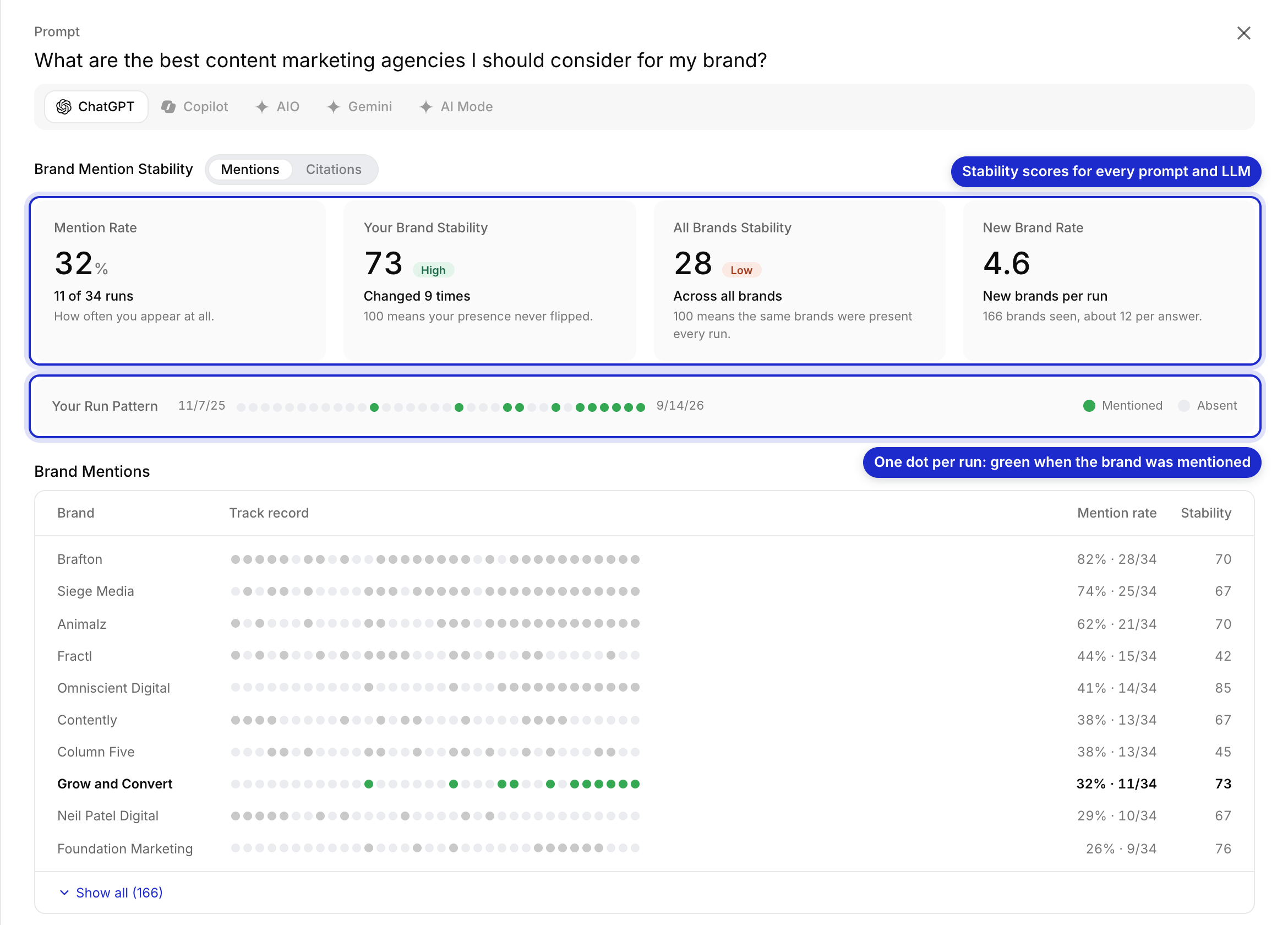
    The same prompt on the same LLM can name a brand one day and leave it out the next, so we don't trust any single run on its own. Switch the topic table to All runs and each cell shows the share of runs where the brand was mentioned or cited, per prompt and LLM. The runs dropdown counts every run or only the recent ones.

    Click a prompt to see Brand Mention Stability: the mention rate, the run pattern (one dot per run), a stability score from 0 to 100, and every other brand named across those runs. In the example below, Grow and Convert appears in 11 of 34 ChatGPT runs, but in almost every recent one. Share links have the same switch.
    Brand Mention Stability for one prompt

    Click any prompt in the topic table

    Read more: All Runs and Brand Mention Stability · Invisible prompts: why you can't see the AI searches driving your leads

  33. Canada

    Canada is now a tracking location. Pick it when you add a brand or topic and its prompts are checked from Canada.

    Read more: Quickstart, How Traqer Works, and Setup

  34. Switch an LLM Off

    Switch off an LLM you don't need in Settings → Tracking. Traqer stops checking it and hides its data everywhere, including share links. Nothing is deleted: switch it back on and its past runs return. At least one LLM always stays on. Past averages change when you switch one off, because it's no longer part of the calculation.

    Read more: Visibility Models

  35. Google Updates on Graphs

    When a client's visibility moves, a Google update is one of the first things to rule out. A G on the date line of the brand and topic graphs marks each Google core and spam update. Hover it for the name and date, with a link to Google's announcement.

    Read more: Date Ranges and Comparisons · AI Overviews tracker: how to measure brand visibility in AIO

  36. Prompts Behind Each Cited Article

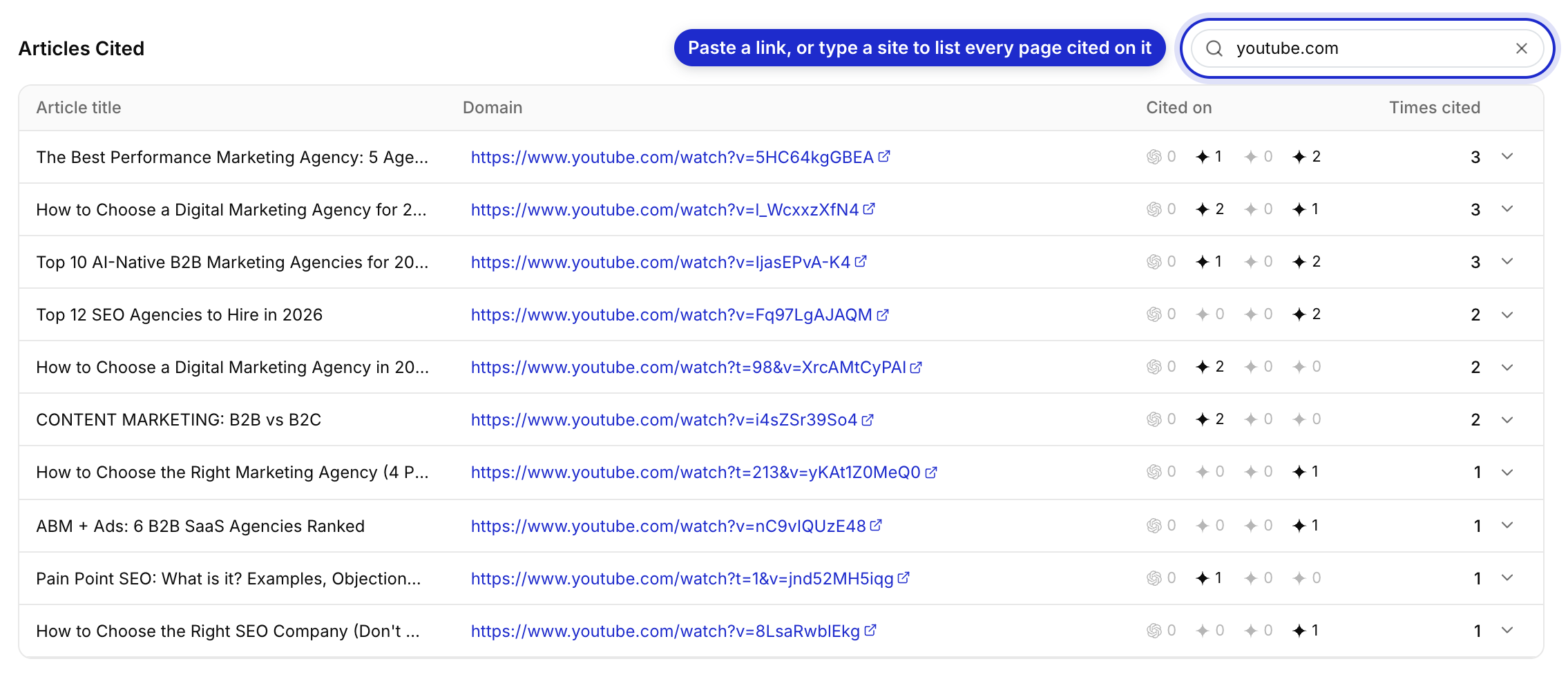
    Each row in Articles Cited shows its count per LLM and expands into the prompts that cited it. When you pitch a site to include your client, you can name the prompts its article is cited for.

    Read more: Brand Mentions vs. Citations · LLM citation tracking: the method and tool you need

  37. Connect Traqer to Claude

    You can connect Traqer to Claude and ask questions like "Which competitors are gaining on us, and in which topics?". Claude answers from your brands, visibility, topics, prompts, competitors and citations.

    In Claude, open Settings → Connectors, add Traqer, sign in and click Authorize. Access is read-only and follows your Traqer role, so Claude only sees the brands you can see. It's on paid plans. If you track several brands, name the brand and the time period in your question.

    Read more: Connect Traqer to Claude · AI visibility tools with an MCP server: what to look for

  38. Combined on the Brand Graph

    The brand graph's Per LLM / Combined switch adds one line for the brand's overall trend. On LLM Visibility Count, Combined shows the total across LLMs.

    Read more: Visibility Models · AI search visibility metrics: what should you track?

  39. Brands in Sources

    Most Popular Brands in Sources, in Analyze & Improve, ranks brands by how many of a topic's cited articles mention them. Expand a brand to see the articles it's in and the ones it's missing from, or click Show my gaps for your own brand. The articles a brand is missing from make a good outreach list, because LLMs already cite them for that topic.

    Read more: Analyze & Improve · Are third-party citations the biggest lever in GEO?